
Clipvelope
Local-only clipboard manager for the Mac, with encrypted history.
macOS 26 or later4.3 MB disk imageRelease notes
⌃⌥VOpens the history from any app
At a glance
- Requires
- macOS 26 or later
- Licence
- MIT, free to use
- Permissions
- None, until you turn on Paste directly
- Your data
- Encrypted on your Mac, and it stays there unless you turn on auto backup
- Updates
- Checked once a day, and you can turn that off
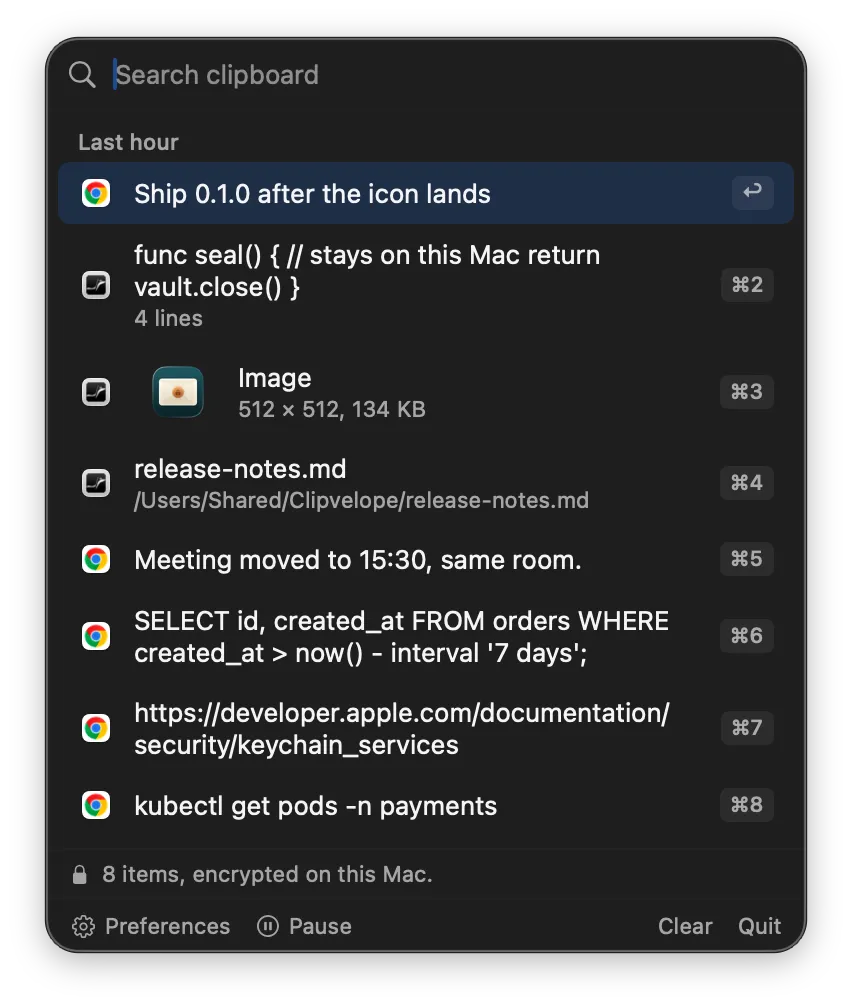
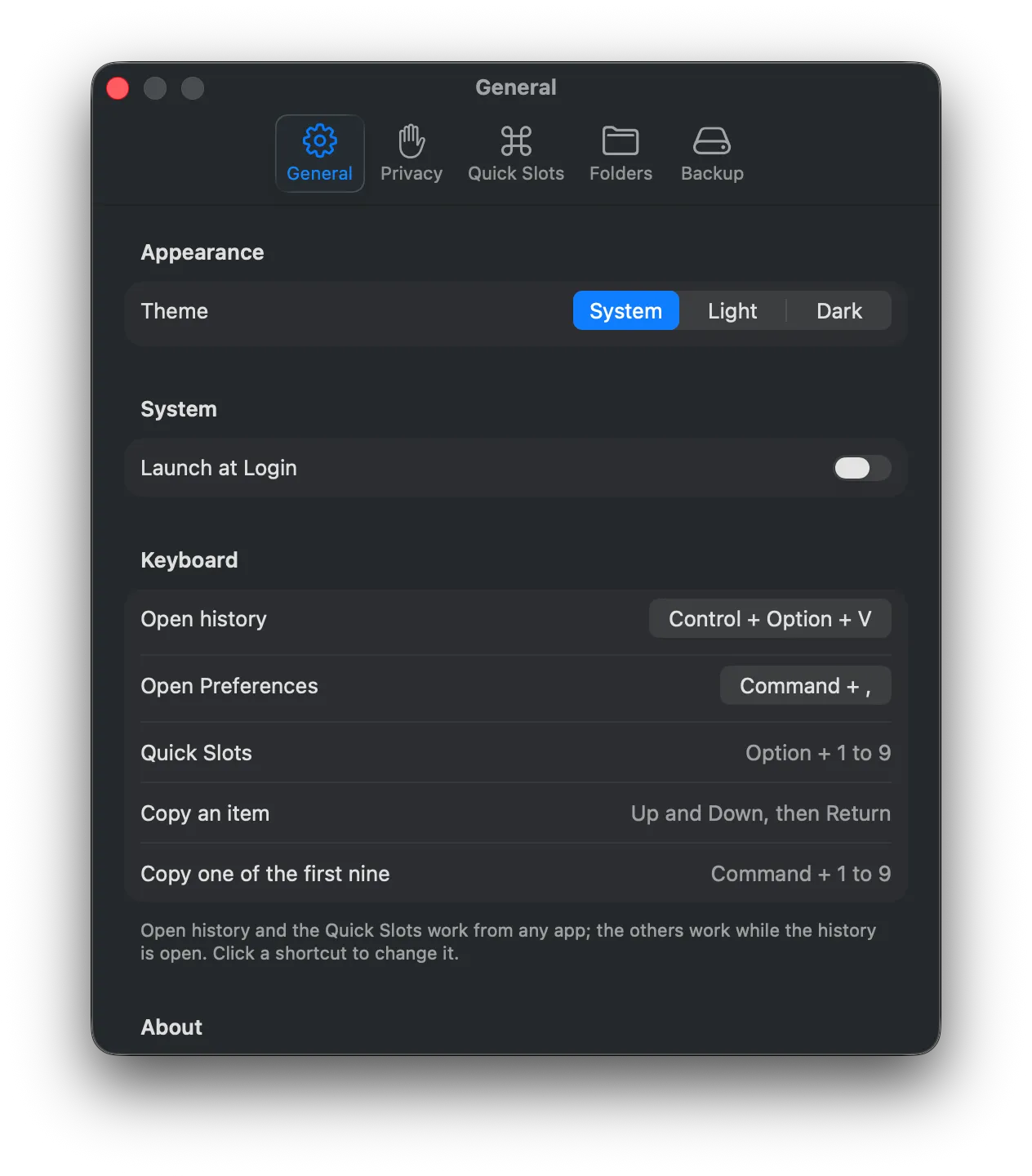
Clipvelope keeps a history of what you copy: text, formatted text, images and files. It lives in the menu bar, not the Dock. Press Control + Option + V from any app to open the history, start typing to filter, and press Return to copy an item back to the clipboard. Option + 1 to 9 trigger Quick Slots system-wide: a snippet, or the output of a shell command.
What it does not do
Clipvelope sends your clipboard nowhere. There is no telemetry, no account and
no sync. The one exception is a feature you turn on yourself: auto backup
writes an encrypted file to ~/Documents, which iCloud copies to your account
if you use Desktop & Documents sync. That file is encrypted and its key stays
in the local Keychain, so what would sync is ciphertext. A release build
contacts exactly one URL, the update feed, once a day, to ask whether a newer
version exists, and sends nothing about you or what you copied. That daily
check is a setting you can turn off.
How it stores things
Everything is stored under ~/Library/Application Support/Clipvelope/,
encrypted with AES-GCM. The key lives in the macOS Keychain. If the vault
cannot be decrypted, Clipvelope stops writing and tells you, rather than
silently starting from empty and overwriting your history.
Content that password managers mark as concealed is not recorded by default. You can also ignore specific apps, or pause capture entirely.
What it needs from macOS
Nothing, out of the box: the global shortcuts and the Quick Slots work without Accessibility, Screen Recording or Full Disk Access. One optional feature, Paste directly, presses Command + V for you and therefore needs Accessibility access. It is off by default.
Install
- Download the disk image above and open it.
- Drag Clipvelope to Applications and launch it. It appears in the menu bar.
- Press Control + Option + V, or click the menu bar icon.
Releases are signed with a Developer ID and notarized by Apple, so macOS opens them without a warning. Updates arrive through the app itself.
Source code: github.com/mujieha/clipvelope